

ChatGPT Video Editor in 2026: What the New CapCut ChatGPT Plugin Will Do, and When a Highlighter Edit Is Faster

Short answer: On 24 October 2026, at CapCutWorldLA, CapCut announced a plugin “coming soon” to ChatGPT that brings its editing and generation tools into the chat. No launch date was given. Until it ships, the closest thing is CapCut’s existing CapCut × Codex workflow in the ChatGPT desktop app.
If you came here because you searched “ChatGPT video editor” (about 480 searches a month in the US, per DataForSEO on 25 October), the useful question is not whether a chat can edit video. It is which kind of edit goes faster when you describe it in words, and which goes faster when you just point at the lines you want to keep. We make CutFast, a browser editor built around the second idea, so read the comparison with that in mind; we say where CapCut is the better pick.
What CapCut actually announced
CapCut’s official post says the plugin “brings CapCut’s video editing and generation tools alongside ChatGPT”: start with an idea in ChatGPT, turn it into a video with the plugin inside the chat, then continue in CapCut. The Another Daily AI Newsletter of 25 October reports the same and notes there is no date yet.
It is the third time CapCut and ChatGPT have met. A 2023 CapCut plugin in the old ChatGPT plugin store turned a one-line prompt into a short video with script, voiceover and stock footage (Search Engine Journal, July 2023); that plugin store is gone. The current CapCut × Codex page runs in the ChatGPT desktop app.
| 2023 plugin | CapCut × Codex (today) | ChatGPT plugin (announced) | |
|---|---|---|---|
| Where | Old ChatGPT plugin store | ChatGPT desktop app | ChatGPT |
| Input | One-line prompt | Your clips or a draft + chat instructions | An idea or your footage |
| Output | Generated short video | Editable rough cut in CapCut | Edited / generated video |
| Status | Retired | Available; varies by account and region | “Coming soon”, no date |
Practical rule: Plan around what you can open today. “Coming soon” has no date, and the version that ships may differ from the keynote.
What chat-based editing can already do
CapCut’s Codex page lists what the chat workflow handles once your media is in: generate images or video from a description, or upload your own draft; adjust the timeline by asking (shorten scenes, reorder clips, replace visuals, change text timing, update music); build captions and caption styles; add transitions, filters and effects; run a “smart rough-cut” to arrange clips into a first draft; and open the full CapCut editor for track-level work.
That is a good fit for assembled video: B-roll, product clips, music, titles, templates. The instructions are about objects you can name (“the second clip”, “the intro music”) and the result is a draft you then polish.
The page is also clear about limits. It is for the ChatGPT desktop app, not a browser-only tool. Availability “may vary” by app version, account and region. And generated results are a starting point to review, not a finished video.
The video below shows what editing with ChatGPT looks like in October 2026, so you can judge the chat workflow for yourself.
Video: Kevin Stratvert · How to Edit Videos with ChatGPT (October 2026)
Practical rule: Chat editing shines when you can name what to change. If you can only describe it as “the part where I ramble”, you need a different handle.
Where describing cuts in words breaks down
Talking-head video, podcasts, tutorials and interviews are cut by sentence, not by clip. The edit you want sounds like “keep the second answer, drop the false start, drop the ‘um, so, basically’ before the demo”. Saying that in chat is possible, but you end up quoting the transcript back to the assistant, then checking every cut point by ear.
Three things make it slow:
- You still have to read the transcript. The assistant cannot know which take you prefer. You find it, then describe it.
- Word-level precision. Filler words and half-second silences live between words. “Remove the pauses” is easy; “remove the pause after ‘pricing’ but keep the one before the punchline” takes several rounds.
- Review loops. Each instruction produces a new draft to scrub through. Five small fixes become five previews.
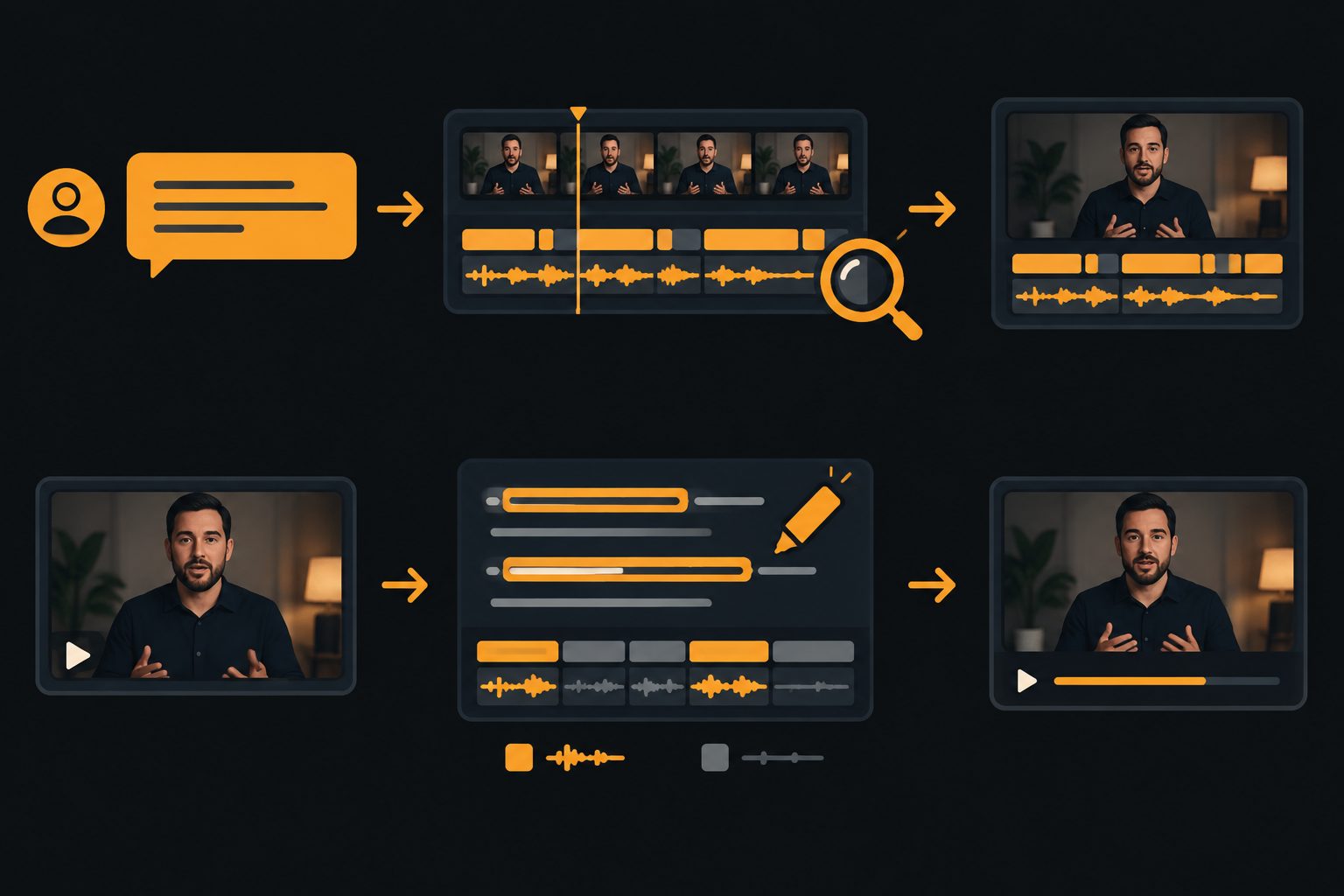
Illustration: describing cuts in chat (top) vs selecting the lines to keep (bottom)
Practical rule: If the thing you would type into chat is a quote from the transcript, skip the chat and select the quote.
The highlighter method: edit by selecting lines
CutFast skips the description step. You open a local file or paste a link (YouTube, Bilibili, TikTok, Xiaohongshu, Xiaoyuzhou podcasts), the AI transcribes it, and the transcript becomes the timeline:
- Pre-transcription. Speech is turned into subtitle lines. Filler words, repeats and silences are marked automatically.
- Highlight to keep. Click or drag over the lines you want, like a highlighter. You are selecting text, not dragging a playhead.
- Export. The highlighted segments export as one clip at original quality. The homepage puts the whole loop at about five minutes.
Local files are processed in the browser and are not uploaded. For podcasts or long recordings where you only want the dead air gone, the silence remover does that one job without a project.

Screenshot: CutFast · highlight subtitle lines to keep; filler and silence are marked for removal
Which one to use for which video
| Your video | Better fit | Why |
|---|---|---|
| Product promo, B-roll montage, music-driven short | CapCut (Codex today, ChatGPT plugin later) | Templates, effects, stock assets; edits are about clips you can name |
| Generate footage from an idea | CapCut plugin | Generation is part of CapCut’s pitch; CutFast does not generate footage |
| Talking-head, tutorial, interview, podcast clip | CutFast | Cut by sentence; filler and silence handled at word level |
| Sensitive recordings (client calls, internal demos) | CutFast | Local files stay on the device |
| Need a full multi-track timeline | CapCut | CutFast is deliberately not a full NLE |
They also chain well: rough-cut the spoken part in CutFast, then bring the cleaned clip into CapCut for music, titles and effects.
Practical rule: Pick the tool by what your video is made of. Mostly speech → cut by text. Mostly visuals → cut by clips.
Cost and privacy, side by side
CapCut’s 2026 price change moved the full AI toolkit to the $19.99/month Pro tier (Newsweek); we broke the tiers down in our CapCut price-hike guide. The ChatGPT plugin’s pricing has not been announced. CapCut’s Codex page says you can start the workflow for free, without listing paid tiers.
CutFast pricing is on the homepage: Free, 3 edits a day; pay-as-you-go at $30; lifetime at $399. Processing for local files happens in your browser, so there is no upload queue and the footage does not leave your machine.
FAQ
Is the CapCut ChatGPT plugin available now? Not as of 25 October 2026. CapCut announced it at CapCutWorldLA on 24 October as “coming soon” with no date. The CapCut × Codex workflow in the ChatGPT desktop app is available today, depending on account and region.
Can ChatGPT edit videos by itself? Not without a tool. It needs a plugin such as CapCut’s to touch a timeline. The chat writes the instructions; the plugin does the cutting.
Does CutFast work inside ChatGPT? No. CutFast runs in your browser (and as a desktop app). You can use both: clean the spoken part in CutFast, then finish in CapCut.
What is the best ChatGPT video editor for talking-head videos? For speech-heavy video, selecting transcript lines is faster than describing cuts in chat. Try that first, then move to chat editing for music and effects.
Is CutFast free? Yes, 3 edits a day on the free plan, no install needed for browser editing.
Try the highlighter edit
If your next video is mostly someone talking, open it in CutFast and highlight the lines you want before you write a single chat instruction: edit a video with CutFast.
CutFast Team
More in this series
- Best Klap Alternatives in 2026: Free Plans, No Watermark and Desktop Options Compared
- Best Opus Clip Alternatives in 2026: 5 AI Clippers Compared (Free Tiers, Watermarks, Desktop Options)
- Best Viblo Alternatives in 2026: Cheaper Ways to Clip Long Videos (and When Viblo Is Worth It)
- Viblo vs Opus Clip (2026): Which AI Clipper Should You Pay For? Plus a Third Option
- ChatCut Desktop Is Here: Local Agent Timeline, or Cut and Go in the Browser
View all 45 articles in Tool Comparisons →